
Form Contents
![]()
The Form Contents asset
When you create a Custom Form, a Form Contents asset is automatically created beneath it, as shown in the figure to the right. Most of the configuration for a Custom Form is performed via this asset including adding sections and questions, setting up emails and viewing the submission logs.
You can configure the settings of the Form Contents asset on its associated asset screens. These screens are often the same or similar to those for a Standard Page and are described in the Asset Screens manual. In this chapter, we will describe the Form Contents, Submission Actions, Email Options, Selective Emails, Submissions Logs and Incomplete Submissions screens, which are different for a Form Contents asset.
Bookmarks to the headings on this page:
Form Contents Screen
The Form Contents screen allows you to define the sections and questions of the Custom Form. It also allows you to change various settings for the Custom Form including whether or not to use the Page Contents and Thank You Bodycopies, what text to show on the Submit and Reset button and whether or not to use Client-Side Validation.
Tip: You can also access the Form Contents screen by right clicking on the Custom Form asset in the Asset Map and selecting Edit Contents.
Questions (not attached to a section)
This section lists the questions that have been added to the form and allows you to add new questions. The questions that are listed in this section are not contained within a section. The Questions (not attached to a section) section of the Form Contents screen is shown in the figure below.

The Questions (not attached to a section) section of the Form Contents screen
Tip: Questions that are not created in sections cannot be clones or linked to other Custom Forms.
By default, no questions will be listed, as shown in the figure above. To add a question, select the question type in the Add Questions field, select how many questions to add of this type (for example if you want to add two questions of type text to the form, select 2 from the list) and click Commit. The questions will be listed in the Current Questions section, as shown in the figure below.

The Current Questions list

Question assets
- Question: this shows the name of the question. When you click on the question name, the Details screen will be displayed where you can modify the settings for that question. The content of the Details screen will vary depending on the type of question you have selected. For more information about the Details screen of each question type, refer to the question type chapters in this manual.
- Type: this shows the question type that has been added
- Delete: this field allows you to delete a question from the form. To do this, click on the box and click Commit. Alternatively, if you want to delete all questions on the form, click the box at the top of the column and click Commit.
- Move: this field allows you to re-order the questions for the form. Click on either the
up or
down arrow to move the question. Once you have re-ordered the questions, click Commit.
Tip: When you re-order the questions, remember to click Commit. If you do not click Commit, the system will not save the order of the questions.
You can add additional questions to the form by using the Add Questions field.
Sections
This section lists the sections that have been added to the form and allows you to add new sections. By default, no sections have been added. The Section section of the Form Contents screen is shown in the figure below.

The Sections section
To add a section, enter the name of the section in the Add Sections section and click Commit. The section will be listed in the Current Section list, as shown in the figure below.

The Current Sections list

A section asset
A Section asset will also appear in the Asset Map, as shown in the figure to the right. You can add as many sections as you want to the form.
For each section added, the name of that section is listed in Current Sections. When you click on the section name, the Details screen will be displayed where you can add questions to that section. For more information about the Details screen, refer to the Sections chapter in this manual.
Formatting
This section allows you to customise the format of your Custom Form. The Formatting section of the Form Contents screen is shown in the figure below.

The Formatting section
The fields that are available in this section are as follows.
- Use Confirmation Page: this field allows you to select whether or not your form will contain a confirmation page. This will allow the user to ensure they have correctly completed the form before submitting it. The confirmation page can be used for both a single and multiple page Custom Form.
- Use Bodycopy: this field allows you to select whether or not to change the default layout of the Custom Form. The available bodycopies are listed below:
- Page Contents Bodycopy: this is used to define the initial layout of the Custom Form where the user fills out the questions.
- Confirmation Page Contents Bodycopy: this is used to define the layout of the confirmation page. This Bodycopy is only used when the Use Confirmation Page field set to Yes.
- Thank You Bodycopy: this is used to define the layout of the page once the user has submitted the information.
- Unattached Questions Format Bodycopy: this is used to define the layout of the page with questions that are not attached to a particular section when dealing with a form with multiple pages.
- Exit Page Contents: this is used to define the layout of the page displayed once the user has saved and exited the Custom Form. This Bodycopy enables the use of the Save and Exit button. Please note that the Save and Exit function is only available to logged-in users and cannot be used by public users.
You can choose to change any number of Bodycopies. If you wish to change a default layout, select which Bodycopy you want change and click Commit. A Bodycopies folder containing the Bodycopy assets will be added under the Custom Form asset in the Asset Map, as shown in the figure to the right. For more information on how to use these assets, refer to the Formatting the Custom Form chapter in this manual.
The Bodycopies Folder - Submit Button Text: enter the text to be used for the submit button, for example Send or Apply. By default, the text that appears on this button is Submit. This button can have added HTML attributes. For more information, see the Simple Formatting section of this chapter.
- Reset Button Text: enter the text to be used for the reset button, for example Revert. By default, the text that appears on this button is Clear Form. This button can have added HTML attributes. For more information, see the Simple Formatting section of this chapter.
-
Note Text Size: enter the size of the text to be used for the question notes. These notes appear under the Title of the question (as shown in the figure to the right) and are specified on the Details screen of each question. The size of the text is specified as a percentage of the text size used for the rest of the text on the screen. By default, this value is 80%.
An example of note text
Validation
This section allows you to choose the validation method to be used for the Custom Form. The Validation section of the Form Contents screen is shown in the figure below.

The Validation section
The fields that are available in this section are as follows.
- Client-Side Validation: select whether or not to turn on client-side validation. If it is turned on, the form is validated before being submitted to the server. This can be more efficient as it means that a user will be informed if something is wrong before they send the information back to your server. However, some older browsers do not support client-side validation, so you may choose to use server-side validation. Server-side validation is used by default to trap invalid input, after the form is submitted. Turn on client-side validation to provide an extra layer of validation. By default, client-side validation is off.
- Error Message Format: this field allows you to modify the message that will appear when the keyword replacement Message indicating that there were errors is used on the Page Contents Bodycopy. To edit the message, click on the
icon – a WYSIWYG Editor will appear. Format the message to show to the user.
Submission Limit
This section allows you to set a limit on the number of submissions allowed on the Custom Form. The Submission Limit section of the Form Contents screen is shown in the figure below.

The Submission Limit section
The fields that are available in this section are as follows:
- No. of Submissions Allowed: enter the number submissions that will be allowed to be logged on the Custom Form asset. For example, if this field is set to 5, once five submissions have been logged on the Custom Form,
no more submissions will be able to be made. By default, this field is set to 0, meaning that the option is disabled and that no limit has been applied to the Custom Form submissions.
If a set submission limit is exhausted, an error message will be displayed to users who attempt to complete the form. The format of this message is defined on the Submission Limit Reached Bodycopy. For more information, refer to the Formatting the Custom Form chapter in this manual. - Error Text: enter the error message that will be displayed to users if the set submission limit is exhausted while they are completing the Custom Form. By default, this message in this field will read: Submission limit has been reached on this form. No more submissions will be accepted.
CAPTCHA
This section allows you to change the settings for the CAPTCHA field that can be shown on the Custom Form. The CAPTCHA section of the Form Contents screen is shown in the figure below.

The CAPTCHA section
A CAPTCHA field is a method of asserting that a human does the submissions that are being made on the Custom Form rather than an automated system. The fields that are available in this section are as follows.
- Require CAPTCHA: select whether or not the CAPTCHA field is required to be filled in by the user to submit the form. If you select Yes and you are using the Page Contents Bodycopy, the CAPTCHA keyword replacements need to be added to the form. If you do not include these keyword replacements, the user will not be able to fill out the CAPTCHA field and hence, will not be able to submit the form. By default, this field is set to No.
- Provide Accessible CAPTCHA:select whether or not the CAPTCHA field will have an accessible CAPTCHA option. If this option is set to Yes, users will have the choice to use accessible validation. This involves the user inputting their email address and then clicking a validation link, which will be sent to their email account.
- CAPTCHA Key Length: enter the number of characters that will appear in the image for the CAPTCHA field. By default, this is set to 4 characters.
- CAPTCHA Character Zoom: enter the maximum size that the characters in the image can appear. Each character will be randomly zoomed between 1 and the figure entered into this field. By default, this figure is 1.
- CAPTCHA Regen Link Text: enter the text to use when the keyword replacement CAPTCHA Regeneration Link is used. The user will be able to click on this text to regenerate the characters that appear in the CAPTCHA image. By default, this text is Regenerate security key.
- Use CAPTCHA Colours: select whether or not the CAPTCHA colour options for background, text and border will be used.
- CAPTCHA Background Colour:select the background colour for the CAPTCHA. This field will only be used if the Use CAPTCHA Colours field is set to Yes.
- CAPTCHA Text Colour:select the text colour for the CAPTCHA. This field will only be used if the Use CAPTCHA Colours field is set to Yes.
- CAPTCHA Border Colour:select the border colour for the CAPTCHA. This field will only be used if the Use CAPTCHA Colours field is set to Yes.
- Use CAPTCHA Font:select whether or not the CAPTCHA Font options will be used.
- CAPTCHA Font:select the font file to be used as the CAPTCHA font. This field will only be used if the Use CAPTCHA Font field is set to Yes.
- CAPTCHA Font Size:enter the size to be used on the CAPTCHA font.
- CAPTCHA Width:enter the width of the CAPTCHA image. By default, this is set to 200.
- CAPTCHA Height:enter the height of the CAPTCHA image. By default, this is set to 36.
- CAPTCHA Min Angle: enter the minimum angle that will be used for the CAPTCHA text. By default, this is set to -20.
- CAPTCHA Max Angle: enter the maximum angle that will be used for the CAPTCHA text. By default, this is set to 20
- CAPTCHA X Start: enter the x-position on the CAPTCHA. The x-position will determine where the characters begin in the CAPTCHA. By default, this is set to 10.
- CAPTCHA Min Distance: enter the minimum distance between each character. By default, this is set to 10.
- CAPTCHA Max Distance: enter the maximum distance between each character. By default, this is set to 20.
- Use CAPTCHA Arc: select whether or not to use arced lines across the text in the CAPTCHA. This is added as an additional security measure. This field will only work if the Use CAPTCHA Font field is set to Yes and a CAPTCHA font is manually selected.
- CAPTCHA Arc Colour: select the colour of the arced lines across the text in the CAPTCHA. This field will only work if the Use CAPTCHA Arc field is set to Yes, the Use CAPTCHA Font field is set to Yes and a CAPTCHA font is manually selected.
- Include Uppercase Letters in CAPTCHA Text: select whether or not the CAPTCHA will include uppercase letters. If this option is set to Yes, at least once uppercase letter will appear in the CAPTCHA.
- Include Numbers in CAPTCHA Text: select whether or not the CAPTCHA will include numbers. If this option is set to Yes, at least once number will appear in the CAPTCHA.
- Captcha Invalid Error Message: enter the text to be used for the CAPTCHA invalid error, for example Invalid Security Key. This message will be displayed when the user inputs an incorrect CAPTCHA key. By default, the message that will appear is Security Key Incorrect. The CAPTCHA invalid error is displayed when the keyword replacement %form_errors% is added to the Page Contents or Page Format Bodycopies.
- Captcha Required Form Error Message: enter the text to be used for the CAPTCHA required form error, for example CAPTCHA is required but does not appear on form. This message will be displayed when the Required CAPTCHA field is set to Yes, but the form does not contain the CAPTCHA input field for the user to enter the CAPTCHA key. By default, the message that will appear is Valid CAPTCHA is required, but none is found in this form submission. The CAPTCHA required error is displayed when the keyword replacement %form_errors% is added to the Page Contents or Page Format Bodycopies.
Multi Page Form Options
This section allows you to modify the Custom Form to contain multiple pages and customise the multi-page features. The Multiple Page Form Options section of the Form Contents screen is shown in the figure below.

The Multiple Page Form Options section
A multi-page Custom Form is useful for forms with many questions and multiple sections. The fields that are available in this section are as follows:
- Multi-Page?: select whether or not to use a multi-page Custom Form. If you select Yes, then each section of your Custom Form will become a separate page, ordered as they are ordered in the Asset Map. Any questions that have not been created under a section will appear at the beginning of the form.
- Next Page Button Text: enter the text to be used for the next page button, for example Continue. This button replaces the Submit keyword on all but the last page of the Custom Form. By default, the text that appears on this button is Next Page.
- Previous Page Button Text: enter the text to be used for the previous page button, for example Back. This button is only compatible with forms that have either Multi-Page or Use Confirmation Page enabled. By default, the text that appears on this button is Previous Page.
- Save Button Text: enter the text to be used for the save button, for example Keep. This button saves the information entered on the current page of the form. The Save Button is displayed on the Custom Form when the keyword replacement %save_button% is used on the Page Contents Bodycopy. By default, the text that appears on this button is Save.
- Save and Exit Button Text: enter the text to be used for the save and exit button, for example Save For Later. This button saves the information entered and then exits the form. The Save and Exit Button is displayed on the Custom Form when the keyword replacement %save_and_exit_button% is used on the Page Contents Bodycopy. This button is only available with forms that are using the Exit Page Content Bodycopy. By default, the text that appears on this button is Save and Exit.
- Page List Entry Format: enter one of the following keywords to choose how the page list is displayed on the Custom Form:
- %page_name%: the page list will be displayed by the Asset name of the corresponding Section, Unattached Question or Confirmation Page.
- %page_number%: the page list will be displayed numerically.
- %total_pages%: the page list will be displayed as the total number of pages in the form.
- “Unattached Questions” Page Name: enter the text to be used for the Unattached Questions page in the Page List, for example Other. This field is only used when a Custom Form contains questions not attached to a particular section and the Page List Entry Format is set to %page_name%. By default, this is set to Unattached Questions.
- Confirmation Page Name: enter the text to be used for the Confirmation Page in the Page List, for example Confirm Your Details. This field is only used when the Use Confirmation Page field is set to Yes and the Page List Entry Format field is set to %page_name%. By default, this is set to Confirmation.
- Save Confirmation Text: enter the text to be used for the save confirmation message, for example Save Successful. This message will be displayed when the user saves the information entered on the form. By default, the message that will appear is Your progress has been saved. The save confirmation message is displayed when the keyword replacement %save_confirmation% is added to the Page Contents or Page Format Bodycopies.
Simple Formatting
This section allows you to customise the widths for various parts of your form. These settings will only apply if you are not using the Page Contents Bodycopy or you are using the keyword replacement Form Contents on the Page Contents Bodycopy. The Simple Formatting section of the Form Contents screen is shown in the figure below.

The Simple Formatting options
The fields that are available in this section are as follows.
- Form Width: enter the width for the Custom Form when displayed within your Site. Select Pixels from the list provided to specify an absolute value for the width, or Percent to specify the width as a percentage of the width of the window.
Tip: If you select Percent, the form will resize if the user resizes their browser window. If you select Pixels, the form will not resize.
- Question Width: enter the width of the column used for the Title of the questions. Select Pixels from the list provided to specify an absolute value for the width, or Percent to specify the width as a percentage of the window. Please note that this setting will only apply to the questions that are not contained within a section (i.e. the questions that have been added on the Form Contents screen). To modify the width of the Title column for questions within a section, go to the Details screen of that section.
- Answer Width: enter the width of the column used for the answer fields for the questions. Select Pixels from the list provided to specify an absolute value for the width, or Percent to specify the width as a percentage of the window. Please note that this setting will only apply to the questions that are not contained within a section (i.e. the questions that have been added on the Form Contents screen). To modify the width of the answer field’s column for questions within a section, go to the Details screen of that section.
- Submit Button Extras: this allows you to add extra HTML attributes to the submit button for custom styling. Any HTML attributes added to this field will override the default styling for the submit button.
- Reset Button Extras: this allows you to add extra HTML attributes to the reset button for custom styling. Any HTML attributes added to this field will override the default styling of the reset button.
Complex Formatting
The Complex Formatting section of the Form Contents screen is shown in the figure below.

The Complex Formatting section
Squiz Matrix allows you to define a more complex layout for the Custom Form by positioning the questions and responses individually rather than in a single block. The questions are positioned on the Page Contents Bodycopy, and the responses are positioned on the Thank You Bodycopy. Click on the appropriate link to view the keyword replacements that can be used for the Page Contents and Thank You Bodycopies.
Mollom Spam Check
This section allows you to configure Mollom Spam Detection for the Custom Form. To use the fields in this section, you will first need to configure the Mollom Spam Detector settings on the External Tools Configuration screen. For more information, refer to the External Tools Configuration chapter in the System Configuration manual. The Mollom Spam Check section of the Details screen is shown in the figure below.

The Mollom Spam Check section
The fields available are as follows:
- Use Mollom Spam Check: select whether or not to enable Mollom spam checking on the Custom Form. If this field is enabled, Mollom will analyse the form submissions and filter out those containing unwanted content (spam). If Mollom is unsure of whether a submission is spam or
not, a CAPTCHA will be displayed for verification. If this option is enabled, the Mollom CAPTCHA keyword replacements must be configured on the Page Contents Bodycopy.
For more information on how Mollom spam checking works, visit the Mollom website. - Questions To Check: this field allows you to select the questions to check and the Content Type they will be checked against. In the New question to check? field, select a question on your form. Once you have selected a question, click Commit. New fields will
appear, as shown in the figure below.
For each selected question, select the Content Type that Mollom will check for spam against. This will indicate to Mollom the type of content that is expected and it will check submissions accordingly. For example, selecting the Author Name Content Type will specify that the expected response should be a name. To delete a question to check, select the Delete check-box and click Commit.
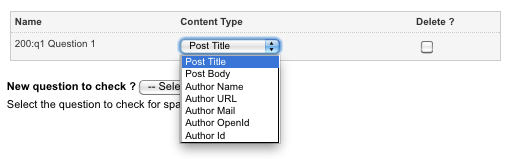
Additional options in the Questions to Check field - Unsure Error Message: enter the text to display when Mollom is unsure of whether a submission is spam or not. By default, this message will read Please enter the characters in the image to verify your submission. This message is shown when the keyword replacement Create Asset Error Message is used on the Page Contents Bodycopy.
- Spam Error Message: enter the text to display when Mollom identifies a submissions as spam and rejects it. By default, this message will read This submission looks like spam. Cannot accept this submission. This message is shown when the keyword replacement Create Asset Error Message is used on the Page Contents Bodycopy .
- Captcha Incorrect Text: enter the text to display when a user enters an incorrect CAPTCHA security key. By default, this message will read Incorrect security key. Please try again. This message is shown when the keyword replacement Create Asset Error Message is used on the Page Contents Bodycopy.
- CAPTCHA Regen Link Text: enter the text to display for the CAPTCHA regeneration link on the Custom Form. By default, this link will read Regenerate security key. This link is shown when the keyword replacement Mollom CAPTCHA regeneration link is used on the Page Contents Bodycopy .
Security Enhancement
This section allows you to enhance the security of the Custom Form by disabling the replacement of any keywords that may be present in a user's form inputs. When keywords are replaced as normal, users may be able to retrieve information that they otherwise would not have permission to view and may potentially be a risk to security.
The Security Enhancement section of the Details screen is shown in the figure below.
The Security Enhancement section
To prevent keywords from being replaced in user form inputs, select Yes in the Disable Keyword Replacements field. If this field is enabled, keywords will not be replaced in the user's form inputs. For example, %globals_asset_attribute_xxx:100% will be output as globals_asset_attribute_xxx:100 rather than the attribute value. By default, this field is set to Yes.
Submission Actions Screen
The Submission Actions screen allows you to create custom actions that are run whenever the user submits the form. These actions can send an email or perform a database query. The Existing Actions, Add New Action and Selected Action sections of the Submission Actions screen are shown in the figure below.

The Submission Actions screen
The submission actions available on the Custom Form are as follows:
- Save as XML
- Make SOAP Call
- Create Sharepoint List Item
- Run Database Query
- Submit TRIM Record
- Upload YouTube Video
- Call REST Resource
- Send Email
- Set Session Var
Further information on each of these actions is outlined in the sections below.
Save as XML
The Save as XML submission action exports form submissions as an XML structure. To add this action, check the box Create a new action of type in the Add New Action section, select Save as XML in the list provided and click Commit. The action will be added to the Existing Actions section, as shown in the figure below.

The Save as XML Submission Action
Additional fields will also appear in the Selected Action section, as shown in the figure below.

The Selected Action section for the Save as XML Submission Action
The fields available in this section are as follows:
- Action Name: this is the name of the action that you have added. By default, it is set to Save as XML. This name appears in the Action Name / Type field in the Existing Actions section.
- Location: enter a server file path as a destination for the saved XML files. A location must be specified for the submission action to work.
- XML Detail: select whether the detail of the XML file will be simple or complex. Complex XML files include user’s IP addresses and asset ID details. By default, this is set to Simple.
- XML Value to Store: select whether the exported files will contain form answers in either key or value components. By default, this is set to Values.
Make SOAP Call
The Make SOAP Call submission action sends a message to a remote SOAP Server. To add this action, check the Create a new action of type option in the Add New Action section, select Make SOAP Call and click Commit.
The Make SOAP Call action supports both SOAP 1.1 and SOAP 1.2 standards. Please note, however, that WS-Security features and MIME multi-part attachments are not currently supported by this submission action.
The action will be added to the Existing Actions section, as shown in the figure below.

The Make SOAP Call submission action
Additional fields will also appear in the Selected Action section, as shown in the figure below.

The Selected Action section for the Make SOAP Call submission action
The fields available in this section are as follows:
- Action Name: this is the name of the action that you have added. By default, it is set to Make SOAP Call Before Submit. This name appears in the Action Name / Type field in the Existing Actions section.
- WSDL: enter the URL to the WSDL of the SOAP server.
- Login: enter the username used to connect to the SOAP server.
- Password: enter the password used to connect to the SOAP server.
- Mute SOAP Exceptions: if an exception is thrown by the SOAP client, a response will not be returned by the Submission Action. This options allows you to select whether or not to disregard these SOAP exceptions. If this field is enabled, SOAP responses will be returned even if an exception is thrown.
The following authentication options are available for SOAP servers used over HTTPS:
- Local Certificate: select the local certificate for authentication on the SOAP server.
- Passphrase: enter the passphrase for authentication on the SOAP server.
Once you have done this, click Commit. Additional fields will be displayed where you can view the request and response messages of the SOAP server and any generated keyword replacements.
Test Response
This section allows you to test the response of the SOAP request specified in the SOAP Request Message section.
To do this, select the Run Test field and click Commit. A sample SOAP request and response will be printed in this section, as shown in the figure below.

Testing the response of the SOAP request
The tool is useful for testing purposes when configuring the SOAP call in the SOAP Request Message section.
SOAP Request Message
This section allows you to view the actions available and edit the request message of the SOAP call. An example of the SOAP Request Message section is shown in the figure below.
The SOAP Request Message section of the Make SOAP Call submission action
The fields available are as follows:
- Action: Select the action to use on the request message. These actions are determined by the file that has been selected in the WSDL field. In the figure above, the ListProperties action is being used.
- Parameters: the default request message of the selected Action will be listed in this section, allowing you to configure the parameter values of the Action (marked as ??). Question keyword replacements can be used in the request message, for example, %response_100_q1% , %question_name_100_q1% or %file_upload_100_q2% .
SOAP Response Message
This section displays the default response message from the SOAP call, displaying the parameter values that will be returned (marked as ??). An example of the SOAP Response Message section is shown in the figure below.

The SOAP Response Message section of the Make SOAP Call submisison action
Check Response
This section allows you to specify a field on the SOAP response for validation purposes. Matrix will display custom error messages if incorrect data is returned on the SOAP response. The Check Response section is shown in the figure below.

The Check Response secton of the Make SOAP Call submission action
The New field to check? field will list the available SOAP response fields, populated by the request message configured in the SOAP Request Message section.
To enable data validation on a response field, select the field in this list and click Commit. Additional fields will appear in this section, as shown in the figure below.

Additional fields in the Check Response section
The following fields are available in order to configure the Check Response validation requirements:
- Rule: specify the rule that will evaluate whether or not data returned on the SOAP response is valid. The rule types available are:
- Must contain
- Must contain (Case sensitive)
- Must NOT contain
- Must NOT contain (Case sensitive)
- Must be equal to
- Must NOT be equal not
- Must be less than
- Must be less than or equal to
- Must be more than
- Must be more than or equal to
- Value: enter a value that will be used to evaluate whether or not data returned on the SOAP response is valid (as determined by the rule type selected in the Rule field).
- Error Message: enter an error to display for users if data validation fails. You can use the keywords listed in the Keywords Available section on this error message.
For example, if you set the validation Rule and Value as Must NOT contain Fail, the response will only be deemed valid if the response does not contain the value Fail. If it does contain this value, the returned data will be evaluated as invalid and the error configured in the Error Message field will be displayed.
Error messages defined in the Check Response section are displayed on the Custom Form via the %form_errors% keyword replacement. When the validation check fails, users will not be permitted to submit their form. Only when all errors have been addressed and validation succeeds can a form submission be made.
To delete a SOAP response field from the Check Response section, select its corresponding Delete checkbox and click Commit.
Keywords Available
The parameter values returned from the SOAP call will be stored as global session variables and can be printed using the keyword replacements that will be listed in this section. These keyword replacements will differ depending on the parameters of the SOAP action. An example of the Keywords Available section is shown in the figure below.

The Keywords Available section of the Make SOAP Call submission action
Response to Download as File
This section allows you to specify keywords (as listed in the Keywords Available section) that correspond to files on the SOAP response, temporarily storing these files on the Squiz Matrix server.

The Response to Download as File section of the Make SOAP Call submission action
To use this field, enter the field keywords that will return files on the SOAP response. When a file is returned on the SOAP response, Squiz Matrix will temporarily store this file on the server and replace the specified keyword with a relative URL to this file.
As you commit each keyword in this field, additional fields will appear, allowing you to configure multiple field keywords.
Create Sharepoint List Item
The Create Sharepoint List Item submission action submits form submissions as SharePoint list items. To add this action, check the Create a new action of type option in the Add New Action section, select Create Sharepoint List Item and click Commit. The action will be added to the Existing Actions section, as shown in the figure below.

The Create Sharepoint List Item Submission Action
Additional fields will also appear in the Selected Action section, as shown in the figure below.

The Selected Action section for the Create Sharepoint List Item Action
For more information on the Create Sharepoint List Item action, refer to the Using a Custom Form to Create SharePoint List Items example in the SharePoint manual.
Run Database Query
The Run Database Query submission action performs a database query upon submission. To add this action, check the box Create a new action of type in the Add New Action section, select Run Database Query in the list provided and click Commit. The action will be added to the Existing Actions section, as shown in the figure below.

The Run Database Query Submission Action
Additional fields will also appear in the Selected Action section, as shown in the figure below.

The Selected Action section for the Run Database Query Submission Action
The fields available in this section are as follows:
- Action Name: this is the name of the action that you have added. By default, it is set to Send Email. This name appears in the Action Name / Type field in the Existing Actions section.
- Database Details: this section allows you to enter the connection details for the database. Select either Specify database details, Use a complete DSN or Use the contents of a DB Connector asset. If you select to use a DB Connector asset, the Login Details that are entered into the section below will be ignored. For more information on the DB Connector asset, refer to the Data manual.
- Login Details: enter the User Name and Password for the database.
- SQL Query: enter the SQL query that needs to be executed when a user submits the Custom Form.
Once you have entered this information, click Commit. The submission action will be marked as valid in the Existing Actions section.
Submit TRIM Record
The Submit TRIM Record submission action submits form submissions as TRIM records. To add this action, check the Create a new action of type option in the Add New Action section, select Create TRIM Record and click Commit. The action will be added to the Existing Actions section, as shown in the figure below.

The Submit TRIM Record Submission Action
Additional fields will also appear in the Selected Action section, as shown in the figure below.

The Selected Action section for the Submit TRIM Record Action
For more information on the Submit TRIM Record action, refer to the Using a Custom Form to Create TRIM Records example in the TRIM manual.
Upload YouTube Video
The Upload YouTube Video submission action uploads a submitted video file to YouTube. To add this action, check the box Create a new action of type in the Add New Action section, select Upload YouTube Video in the list provided and click Commit. The action will be added to the Existing Actions section, as shown in the figure below.

The Upload YouTube Video Submission Action
Additional fields will also appear in the Selected Action section, as shown in the figure below.

The Selected Action section for the Upload YouTube Video Action
The Action Name field displays the name of the action you have added. By default, this will be set to Upload Video File. This name appears in the Action Name / Type field in the Existing Actions section.
Client Credentials
This section allows you to authenticate your Squiz Matrix system to access the YouTube API.
In order to authorise your system, you will need to register your system's root URL with Google. For more information, visit the Registration for Web-Based Applications documentation. Please note that you will also need a YouTube-linked Google account for the authorisation process.
The fields available in this section are as follows:
- Consumer Key: enter the consumer key for your system. This will have been provided to you by Google during the registration process.
- Consumer Secret String: enter the consumer secret string for your system. This will have been provided to you by Google during the registration process.
- Developer Key: enter the developer key for your system. This can be obtained on the Dashboard of your Google account.
- Authentication: this field guides you through the authentication process, allowing you to request and authorise the request token for the YouTube API. The steps to do this are as follows:
- 1. Enter the Client Credentials of the Squiz Matrix system. If these credentials have not been specified, this field will display the message Client Credentials Missing.
-
2. Once you have specified and Committed the credentials of your system, a Get Request Token button will be displayed in this field, as shown in the figure below. Clicking this button will obtain the request token of the YouTube API.

The Get Request Token button -
3. Once you have obtained the request token, an Authorise Token link will be displayed in this field, as shown in the figure below. Clicking this link will direct you to YouTube, where you can approve Squiz Matrix access to the account.

The Authorise Token link -
4. You will be redirected back to Squiz Matrix; a Get Access Token button will be displayed in this field, as shown in the figure below.

The Get Access Token button -
5. Click the Get Access Token button. Access will be approved and the message Access Token Granted will appear in this field, as shown in the figure below.

The Access Token Granted message
- Reset Authentication: if you have made an error during authentication or wish to change any details, selecting this field and clicking Commit will reset the authentication process.
YouTube Video Setup
The section defines the settings of the uploaded YouTube videos. The fields available in this section are as follows:
- Privacy: specify the privacy setting of the YouTube video. The options available are Public, Private and Unlisted. This will determine who can view your video on YouTube.
- Title: the title of the YouTube video. You can set a default value for this field in the Video Settings column. You can also specify a form question in the Form Question ID column to use a response on the form submission as the title value of the YouTube video.
- Description: the description of the YouTube video. You can set a default value for this field in the Video Settings column. You can also specify a form question in the Form Question ID column to use a response on the form submission as the description value of the YouTube video.
- Category: the category of the YouTube video. You can set a default value for this field in the Video Settings column. You can also specify a form question in the Form Question ID column to use a response on the form submission as the category value of the YouTube video. For more information on the available categories, view the YouTube Category List documentation.
- Video Source: the source of the video to upload to YouTube. This will be a File Upload form question on the Custom Form.
- Delete Video from server?: select whether or not to delete the temporary video files on the Squiz Matrix server, once uploaded to YouTube. Please note that this setting will only apply when a Create Location is not specified for the File Upload form question. By default, this field is set to Yes.
- Video Upload Timeout (sec): enter the amount of time (in seconds) that Squiz Matrix will attempt to upload the video file to YouTube before returning an error. By default, this field is set to 300 seconds.
Tip: Keyword replacements are available for use on the Thank You Bodycopy to print information of YouTube videos uploaded using the Upload YouTube Video submission action. For more information, refer to the Keyword Replacements chapter in this manual.
Call REST Resource
The Call REST Resource Action submission action communicates with a web service exposing itself using Representational State Transfer (REST) methods. To add this action, check the Create a new action of type option in the Add New Action section, select Call REST Resource and click Commit. The action will be added to the Existing Actions section, as shown in the figure below.

The Call REST Resource Submission Action
Additional fields will also appear in the Selected Action section, as shown in the figure below.

The Selected Action section for the Call REST Resource Submission Action
For more information on these fields and the functions of the Call Rest Resource action, refer to the REST Resource Assets chapter of the Web Services manual.
Send Email
The Send Email submission action sends an email upon submission. To add this action, check the box Create a new action of type in the Add New Action section, select Send Email in the list provided and click Commit. The action will be added to the Existing Actions section, as shown in the figure below.

The Send Email Submission Action
Additional fields will also appear in the Selected Action section, as shown in the figure below.

The Selected Action section for the Send Email Submission Action
The fields available in this section are as follows:
- Action Name: this is the name of the action that you have added. By default, it is set to Send Email. This name appears in the Action Name / Type field in the Existing Actions section.
- To: enter the email address of a person who should receive the email. You can enter their email address in the text fields or select their user account in the asset finder field.
- From: enter the email address that will appear in the from field in the email.
Tip: If you have a question where the user has to enter their email address, use its response keyword replacement in the From field so that the email appears to be sent that user.
- Reply-To: enter the email address for a user to reply to. If no reply-to address is configured, the header will not be sent on the email.
- Subject: enter the text to be used as the subject of the recipient email. You can use keyword replacements for the responses to the questions the user entered on the form.
- Attachments: check the Include file attachments box to attach the files that have been uploaded via a File Upload question type to this email. The Attach to Emails option on the Details screen of the File Uploaded question needs to be set to Yes. For more information on the Details screen, refer to the File Uploaded Question Type chapter in this manual.
- Body: enter the body of the email. You can enter either the text or HTML version of the email in this field. To edit the HTML version, click on the
icon –
a WYSIWYG Editor will appear. You can use the keyword replacements for the responses to the questions the user entered on the form within the body of the email. Along with these keyword replacements, you can also use the following:
- %form_info%: this will show information about the Custom Form including the asset id, name and URL of the form, and the name and asset id of the Site.
- %form_summary%: this will show the responses that the user entered on the form.
Once you have entered this information, click Commit. The submission action will be marked as valid in the Existing Actions section, as shown in the figure below.

The Valid Send Email Submission Action
Set Session Var
The Set Session Var submission action sets session variables from form submissions. To add this action, check the box Create a new action of type in the Add New Action section, select Set Session Var in the list provided and click Commit. The action will be added to the Existing Actions section, as shown in the figure below.

The Set Session Var Submission Action
Additional fields will also appear in the Selected Action section, as shown in the figure below.

The Selected Action section for the Set Session Var Submission Action
The fields available in this section are as follows:
- Action Name: this is the name of the action that you have added. By default, it is set to Set Session Var. This name appears in the Action Name / Type field in the Existing Actions section.
- Variable Name: enter the name of the variable in this field. This name can be used within the %global_session_<variable>% keyword replacement to display the value of the session variable.
- Set Value: enter the value of the session variable in this field. Keyword replacements can be used in this field.
Once you have done this, click Commit. The submission action will be marked as valid in the Existing Actions section and the session variable will display the set value for the last submitted form. For example, if a session variable is created with a Variable Name of IP and a Set Value of %form_submission_ip_address%, using the keyword replacement %globals_session_IP% will display the IP address of the user who completed the most recent form submission.
Editing a Submission Action
To edit a submission action, click on the
icon in the Existing Actions section. The action will turn blue and the details of the action will appear in the Selected Action section.
Activating and Deactivating a Submission Action
By default, when you add a submission action it will automatically be activated as the Active box will be ticked in the Existing Actions section. To deactivate a submission action, click the Active box and click Commit. This will mean that the action will not be performed until it is activated once again.
Deleting a Submission Action
To delete a submission action, click the Delete box for the action in the Existing Actions section and click Commit.
Email Options Screen
The Email Options screen allows you to define the different emails to be sent when a user submits the Custom Form.
Keyword Replacements
The Keyword Replacements section of the Email Options screen is shown in the figure below.

The Keyword Replacements section of the Email Options screen
In addition to the keyword replacement options shown underneath each email, you can use the response keyword replacements within the fields available for each email option. Click on the list of keywords available for use in emails link for a list of the keyword replacements that are available.
Recipient Email Options
This section allows you to define an email to be sent to the person that needs to be notified when a form submission has been made. For example, if the form is a job application, you can send an email to the HR Manager to notify them that a user has applied for a job. The Recipient Email Options section is shown in the figure below.

The Recipient Email Options section
The fields that are available in this section are as follows.
- To: enter the email address of a person who should receive the email. You can enter their email address in the text fields or select their user account in the asset finder field.
- From: enter the email address that will appear in the from field in the email.
Tip: If you have a question where the user has to enter their email address, use its response keyword replacement in the From field so that the email appears to be sent by that user. For a full list of keyword replacements, click on the list of keywords available for use in emails link in the Keyword Replacements section of the screen.
- Reply-To: enter the email address for a user to reply to. If no reply-to address is configured, the header will not be sent on the email.
- Subject: enter the text to be used as the subject of the recipient email. You can use keyword replacements for the responses to the questions the user entered on the form. For a full list of keyword replacements, click on the list of keywords available for use in emails hyperlink in the Keyword Replacements section of the screen.
- Attachments: check the Include file attachments box to attach the files that have been uploaded via a File Upload question type to this email. The Attach to Emails option on the Details screen of the File Uploaded question needs to be set to Yes. For more information on the Details screen, refer to the File Uploaded Question Type chapter in this manual.
- Body: enter the body of the email. You can enter either the text or HTML version of the email in this field. To edit the HTML version, click on the
icon –
a WYSIWYG Editor will appear. You can use the keyword replacements for the responses to the questions the user entered on the form within the body of the email. For a full list of keyword replacements, click on the list of keywords available for use in emails hyperlink in the Keyword Replacements
section of the screen. Along with these keyword replacements, you can also use the following:
- %form_info%: this will show information about the Custom Form including the asset id, name and URL of the form, and the name and asset id of the Site.
- %form_summary%: this will show the responses that the user entered on the form.
Receipt Email Options
This section allows you to define an email to be sent to the user who submitted the form on the Site. The Receipt Email Options section is shown in the figure below.

The Reciept Email Options section
The fields that are available in this section are as follows.
- Receipt Recipient Question: select an Email Address question type from the Custom Form in this field. The email will be sent to the email address the user enters into the selected question on the form. If this field is empty, this email will not be sent.
- To: enter additional email addresses of the people who should receive the email. You can enter their email address in the text fields or select their user account in the asset finder field.
- From: enter the email address that will appear in the from field in the email.
Tip: You may want to put the email address of the person who will look after their submission, for example, the HR manager, so the user has someone to contact within your organisation.
- Reply-To: enter the email address for a user to reply to. If no reply-to address is configured, the header will not be sent on the email.
- Subject: enter the text to be used as the subject of the email. You can use keyword replacements for the responses the user entered on the form. For a full list of keyword replacements, click on the list of keywords available for use in emails hyperlink in the Keyword Replacements section of the screen.
- Attachments: check the Include file attachments box to attach the files that have been uploaded via a File Upload question type to this email. The Attach to Emails option on the Details screen of the File Uploaded question needs to be set to Yes. For more information on the Details screen, refer to the File Uploaded Question Type chapter in this manual.
- Body: enter the body of the email. You can enter either the text or HTML version of the email in this field. To edit the HTML version, click on the
icon –
a WYSIWYG Editor will appear. You can use the keyword replacements for the responses the user entered on the form. For a full list of keyword replacements, click on the list of keywords available for use in emails hyperlink in the Keyword Replacements section of the screen.
Along with these keyword replacements, you can also use the following:
- %form_info%: this will show information about the Custom Form including the asset id, name and URL of the form, and the name and asset id of the Site.
- %form_summary%: this will show the responses that the user entered on the form.
Send To A Friend Email Options
This section allows you to set up an email that can be used in a Send to a Friend hyperlink. The Send To A Friend Email Options section is shown in the figure below.

The Send to A Friend Email Options section
The fields that are available in this section are as follows.
- STAF Recipient Question: select an Email Address question type from the Custom Form in this field. The email will be sent to the email address the user enters into the selected question on the form. If this field is empty, this email will not be sent.
- To: enter additional email addresses of the people who should receive the email. You can enter their email address in the text fields or select their user account in the asset finder field.
- From: enter the email address that will appear in the from field in the email. You can use a keyword replacement for the responses that the user entered on the form. For a full list of keyword replacements, click on the list of keywords available for use in emails hyperlink in the Keyword Replacements section of the screen.
- Reply-To: enter the email address for a user to reply to. If no reply-to address is configured, the header will not be sent on the email.
- Subject: enter the text to be used as the subject of the email. You can use keyword replacements for the responses that the user entered on the form. For a full list of keyword replacements, click on the list of keywords available for use in emails hyperlink in the Keyword Replacements section of the screen.
- Attachments: check the Include file attachments box to attach the files that have been uploaded via a File Upload question type to this email. The Attach to Emails option on the Details screen of the File Uploaded question needs to be set to Yes. For more information on the Details screen, refer to the File Uploaded Question Type chapter in this manual.
- Body: enter the body of the email. You can enter either the text or HTML version of the email in this field. To edit the HTML version, click on the
icon –
a WYSIWYG Editor will appear. You can use the keyword replacements for the responses that the user entered on the form. For a full list of keyword replacements, click on the list of keywords available for use in emails hyperlink in the Keyword Replacements section of the
screen. Along with these keyword replacements, you can also use the following:
- %form_info%: this will show information about the Custom Form including its asset id, name and URL of the form, and the name and asset id of the Site.
- %form_summary%: this will show the responses that the user entered on the form.
- %referral_url%: this keyword replacement will add the URL of the last page that the user was viewing before they viewed the Custom Form.
- %referring_asset_<keywordreplacement>%: you can use keyword replacements from the referring asset by appending the normal asset keyword replacement onto the end of %referring_asset_. For example, if you want to show the name of the referring asset, use the keyword replacement %referring_asset_attribute_name%. The referral asset is the last page the user was viewing before they viewed the Custom Form.
Setting up a Send To A Friend Form
To use the send to a friend option, follow the steps outlined below.
- Create a Custom Form and add an Email Address question type.
- In the STAF Recipient Question field, select the email address question.
- Format the Body of the email and include the keyword replacement %referral_url%.
- Fill out the remaining fields in the Send To A Friend Options section.
Create a hyperlink to the form from a page in the Site or add a hyperlink within your design. When the user clicks on the hyperlink, they will be able to enter an email address. Once they click submit, the Send To A Friend email will be sent to the email address the user entered. The URL of the asset they were looking at before they clicked on the hyperlink will be included within the body of the email.
Selective Emails Screen
The Selective Emails screen allows you to set up rules so that emails can be sent to additional people depending on the values the user submitted on the form. For example, if the user selects NSW in the State field, send the email to the HR Manager in NSW, otherwise if they select VIC, send the email to the HR Manager in Victoria. Each rule can have a number of different rule parts allowing you to send an email based on what the user answers to several different questions. You can also add as many rules as you want to the form. The Create a New Rule, Current Selective Email Rules, Active Rule, Email Options for Active Rule and Add New Rule Part sections of the Selective Emails screen is shown in the figure below.

The Selective Emails screen
Adding a New Rule
By default, no rules are added to the form, as shown in the figure above. To add a new rule select New Rule in the Create a New Rule section and click Commit. The rule will be added to the Current Selective Email Rules section, as shown in the figure below.

The new rule in the Current Selective Email Rules section
In the Add New Rule Part section, select the question that the rule should be applied to and click Commit. A list will appear in the Add Rule Part field as shown in the figure below.

Adding a rule part in the Add Rule Part section
The list of available rule parts that are available will depend on what type of question you have selected in the Apply Rule To field. For example, if you select a text question type, the list will be different to a select question type. Select the rule part that you want to add from the list provided and click Commit. Additional fields will appear in the Active Rule section, as shown in the figure below. To add additional rule parts to the rule, select it from the Add Rule Part list and click Commit.

The Active Rule section displaying the options for the rule part
Set up the rule by using the fields provided in the Active Rule section. The fields that appear in this section will depend on what rule part you selected to add.
Set up the details of the email in the Email Options for Active Rule section. The fields that are available in this section are as follows:
- When: select the logic to be applied to the rule parts. Select ALL to specify that the email be sent if all of the rule parts are matched, or ANY to specify that the email be sent if at least one of the rule parts is matched.
- Send a: select the type of email to be sent if the rule is matched. You can choose from Recipient Email, Receipt Email or Send To a Friend Email. These emails are set up on the Email Options screen of the Form Contents asset.
- To: enter the email address of the person who should receive the email. You can enter multiple addresses by putting a space, comma or semi-colon between each address.
Once you have done this, click Commit. The rule will be marked as valid in the Current Selective Email Rules section, as shown in the figure below.

The valid rule in the Current Selective Email Rules section
For a rule to be valid it must contain at least one rule part and have at least one email address specified in the Email Options for Active Rule section. If it is not marked as valid, it will not work.
Editing a Rule
To edit a rule, click on the
icon in the Current Selective Email Rules section. The rule will turn blue and the details of the rule will appear on the screen.
Deleting a Rule
To delete a rule, click on the Delete field for the rule in the Current Selective Email Rules section and click Commit.
Submission Logs Screen
The Submission Logs screen shows the submissions that have been made via the Custom Form.
Enable/Disable Logging
This section allows you to turn the logging of submissions either on or off. The Enable/Disable Logging section of the Submission Logs screen is shown in the figure below.

The Enable/Disable section of the Submission Logs screen
If this is off, when a user fills out and submits the form, the details will not be stored within the database and you will not be able to view it later on. By default, Log Submissions is Yes, meaning that the submissions are logged. Change this field to No if you do not want to log the submissions to the database.
Tip: While you are setting up and testing the Custom Form it may be a good idea to turn the login of the submissions off so that the test information is not kept in the database. Once you are ready to make the Live, you should turn it back on.
Export
This section allows you to export the submission logs to either a CSV file or XML format. The Export section of the Submission Logs screen is shown in the figure below.

The Export section
The fields that are available in this section are as follows.
- Date Range: select a date range for the submissions you want to export. For example, if you only want to export the submissions that have been made today, enter today’s date in both sets of fields.
- Format: select the format for the exported file. You can choose from the following options:
- Comma Separated Values (CSV): this option exports the submissions as comma separated values, and includes a header row showing the title of each question. You can change the delimiter that is used by changing the value in the Delimiter field.
- Comma Separated Values (CSV) – no header row: this option exports the submissions as comma separated values, with no header row. You can change the delimiter that is used by changing the value in the Delimiter field.
- XML Format: this option exports the submissions in XML format.
- Download: click this button to begin the export of the selected submissions and download the file that is created. You will be prompted to choose whether to open the file or save it.
Submissions
This section allows you to view the submissions that have been made on the Custom Form. The Submissions section of the Submission Logs screen is shown in the figure below.

The Submissions section
The fields that are available in this section are as follows.
- Date Range: select a date range for the submissions you want to view. For example, if you only want to view the submissions that have been made today, enter today’s date in both sets of fields.
- Items per Page: enter the number of submissions that you want to view per page. By default, this value is 50. If more than 50 entries have been submitted, then they are displayed on separate pages.
- Submissions: the submissions that occurred between the dates selected are displayed in this section. At the top of the list, you can see the current page displayed, and click on the forward > and backward < arrows to move through the pages. Clicking on << or >> takes you to the first or last page respectively. You can also see the current range of submissions being shown on this page, out of the total number of submissions. For each submission, the asset ID, the date and time it was submitted, and the name of the user who made the submission are displayed. To view the responses that the user submitted, click the Expand box and click Commit. To delete a submission, click the Delete box and click Commit. To edit the submission, click on the Edit link. This will take you to the Details screen for that submission. Where you can change the details of the submissions.
Incomplete Submissions Screen
The Incomplete Submissions screen allows you to configure the settings for incomplete submissions logged in the database.
Time Periods
This section allows you to configure the time settings for reminder emails and the expiration of incomplete submissions. The Time Periods section of the Incomplete Submissions screen is shown in the figure below.

The Time Periods section of the Incomplete Submissions screen
The fields that are available in this section are as follows:
- Send Reminder Email After: select a time period that will pass before triggering a reminder email. A reminder email will be sent, informing the user that they have a submission, which is yet to be completed. The time period can be set by days, hours and minutes. Setting this to zero (0) will disable this function.
- Expire Submissions After: select a time period that will pass before the incomplete submission is deleted from the system. The time period can be set by days, hours and minutes. Setting this to zero (0) will disable this function.
Reminder Email Format
This section allows you to configure the format for the reminder email. The Reminder Email Format section of the Incomplete Submissions screen is shown in the figure below.

The Reminder Email Format section
The fields that are available in this section are as follows.
- To: the reminder email will be automatically sent to the user of the incomplete submission if they have entered an email address on the form. Enter additional email addresses of the people who should also receive the reminder email. You can enter their email address in the text fields or select their user account in the asset finder field.
- From: enter the email address that will appear in the from field in the email.
- Reply-To: enter the email address for a user to reply to. If no reply-to address is configured, the header will not be sent on the email.
- Subject: enter the text to be used as the subject of the email.
- Body: enter the body of the email. You can enter either the text or HTML version of the email in this field. To edit the HTML version, click on the
icon –
a WYSIWYG Editor will appear. You can use the following keyword replacements:
- %user_asset_<keywordreplacement>%: you can use keyword replacements from the user asset by appending the normal asset keyword replacement onto the end of %user_asset_.
- %submission_asset_<keywordreplacement>%: you can use keyword replacements from the submission asset by appending the normal asset keyword replacement onto the end of %submission_asset_. For example, if you want to show the id of the submission asset, use the keyword replace %submission_asset_assetid%.
- %form_total_pages%: this will show the total number of pages in the form.
- %return_to_form_url_current%: this will show the URL directing the user back to the current page of the form.
- %return_to_form_url_latest%: this will show the URL directing the user back to the latest page of the form.
- %form_asset_<keywordreplacement>%: you can use keyword replacements from the form asset by appending the normal asset keyword replacement onto the end of %form_asset_.