
Password Rules Configuration
Last Updated: 30 Aug 2017
The Password Rules Configuration screen allows you to configure rules for user passwords. The default settings for a password is that it needs to be at least six characters long and the characters can be of any type (i.e. capital letters, lower case letters, numbers, punctuation, and spaces). You can change these default settings for the password through this screen.
To access the Password Rules Configuration screen, click on the System Configuration icon in the top right-hand corner of the screen, and then select Password Rules Configuration from the drop down list below.
If you change the password rules, the current users in the system will not be affected until they try and change their password.
To force current users to change their password, set the Status of the user account to Up For Review. When they try to log into Squiz Matrix, they will be asked to change their password according to the new password rules.
Manage Password Rules
This section allows you to change the rules for the user passwords.
- Minimum Length: The minimum allowable length for a user password. By default this value is set to 6.
- Disallow User Info: Select Yes to restrict the use of user information in a password, such as username, first name and last name.
- Character Rules: This section allows you to set rules for certain character types. By default, there are no rules applied to any of the character types. To create a rule, tick the Active box and click Commit. Two additional fields will appear as shown in the figure below for the Character Type of Capital letters.
For each character type you can choose to restrict, the following fields will appear: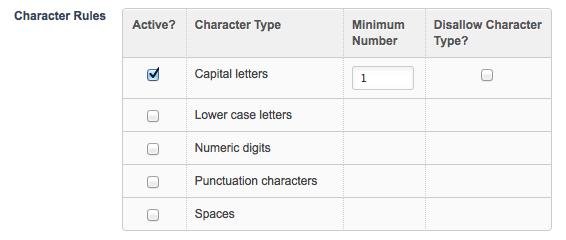
- Minimum Number: The minimum number of this type of character that must be included in the password. For example, in the figure shown above, the minimum number of Capital letters is 1. In other words, the user must include at least 1 capital letter in their password.
- Disallow Character Type: Check this box to prevent the use of these types of characters in passwords.
- Password History Enforcement: Specify the number of unique passwords that must be used on a user account before a previous password can be reused. Entering a value in this field will enable new passwords to be checked against the password history of a user account. If the new password is not unique when compared to the specified number of previous passwords (e.g. the last five passwords used), it will not be accepted.
Deleting a Password Rule for a Character Type
To delete a password rule for a character type, deselect the Active box and click Commit. The rule will be removed and no rules will apply to this character type.
Example of How to Set Up Password Rules
To understand how to set up password rules consider the following example. We want to create a password rule that says a user has to use at least 2 lower case letters, 2 numeric digits and 1 punctuation character. They cannot, however, use spaces.
To do this, go to the Password Rules Configuration screen. In the Character Rules section, select the Active box for Lower case letters, Numeric digits, Punctuation characters and Spaces and click Commit. Additional fields will appear.
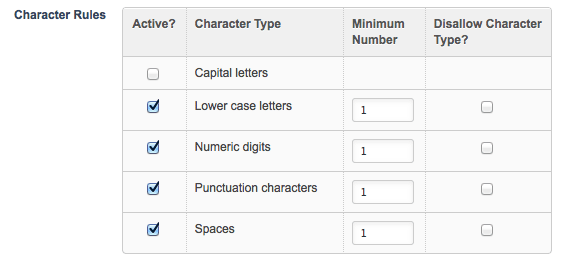
Enter the following information into the fields provided:
- For Lower case letters enter 2 into the Minimum Number field
- For Numeric digits enter 2 into the Minimum Number field
- For Punctuation characters enter 1 into the Minimum Number field
- For Spaces select the Disallow Character Type field
Once you have done that click Save. The password rules have now been set for the system.
Password Blacklist
This section allows you to specify words that users cannot use in their passwords.
- Word List: Specify the words that cannot be used as passwords by users, for example, your company name. You can add as many words as you like to the list. Separate each word with a new line. As of version 5.4.2.0, the default black listed word list in Matrix is:
123456789
qwerty
12345678
111111
1234567890
1234567
password
123123
987654321
qwertyuiop
mynoob
123321
666666
18atcskd2w
7777777
1q2w3e4r
654321
555555
3rjs1la7qe
google
1q2w3e4r5t
123qwe
zxcvbnm
1q2w3e - Exact Match: By default this field is ticked meaning that the system will only stop users using a word from the Word List as a password if its an exact match. For example, if grass is specified in the Word List and the user uses longgrass as their password, the system will allow the use of this password. If Exact Match is not selected, the system will stop users using these words within a password. For example, the user would not be able to use longgrass as the word grass is contained within the password.